
Video
Videos Spotlight EAP Features and Benefits

Promote the Employee Assistance Program to employees and officials using the below videos. They can be viewed alone or as a series. Each answers a frequently asked question about the Employee Assistance Program:
- What Is the EAP?
- How Does the EAP Work?
- Who Can Use the EAP?
- Is the EAP for Public Safety/Law Enforcement?
- How Does the EAP Support Supervisors?
View videos below and share with employees. Tips on how to share are noted at the bottom of the page.
Members are encouraged to use the videos in a variety of ways. Some suggestions:
- Post to the organization’s intranet
- Email employees with a link to a different video each month
- Share during staff meetings
- Include them in new employee orientation activities

Email to Staff: 2 Methods
1. Provide Hyperlink to Video
This allows you to provide a link to the animated video to employees that takes them to view the animated video online. You could post the link on the entity’s intranet site or distribute in emails, for example.
Suggestion: For the most impact, hyperlink a screen shot image of the video’s title screen to increase the visual appeal.
- Follow steps 1 through 3 above for capturing the embed code.
- Paste the embed code into a text file.
- Delete extraneous text as shown here: <iframe src=”https://player.vimeo.com/video/111111111” width=”640” height=”360” frameborder=”0” allowfullscreen></iframe>
- The remaining text is the URL (link) for the video at the MCIT online player. Use the link to connect employees to the video.
More Tips to Make the Link Enticing
2. Embed in Email
The email service an entity uses will determine how to embed a video to play within the body of the message. Most members use Microsoft Outlook. Only Outlook 365 allows for embedded videos to play within an email message.
Stream Videos on Intranet Site
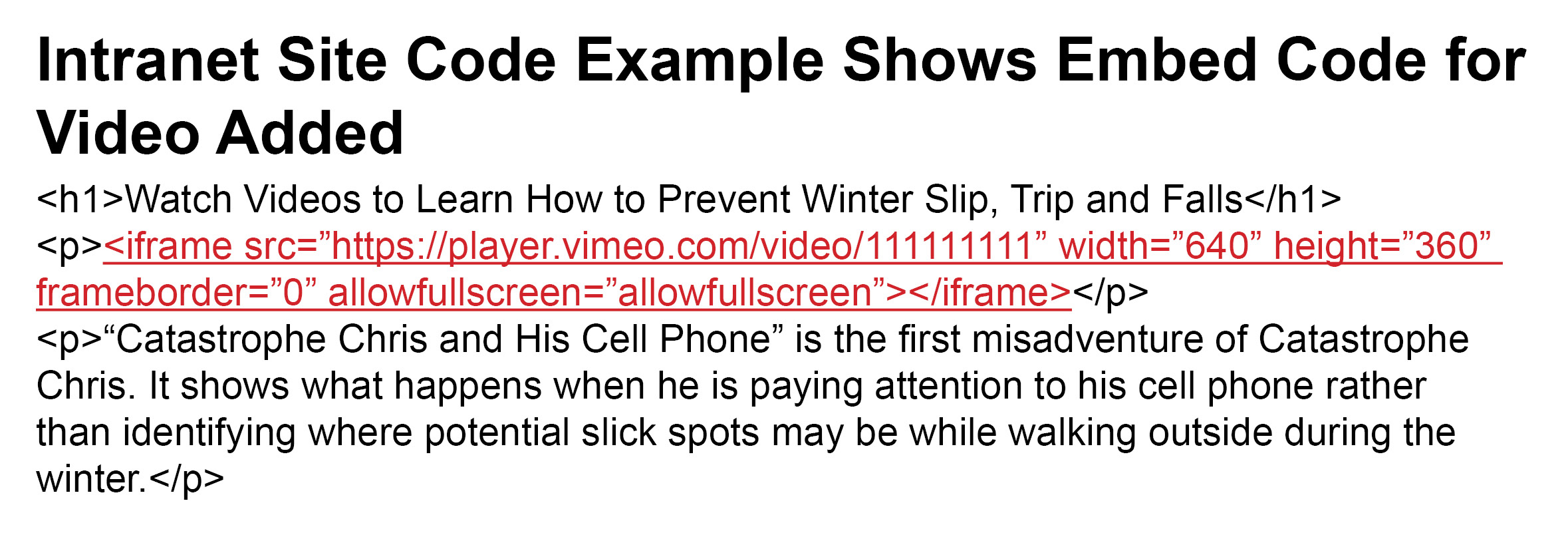
You need to capture the embed code for each video to stream them on your intranet site. Work with your intranet manager to place the embed code.
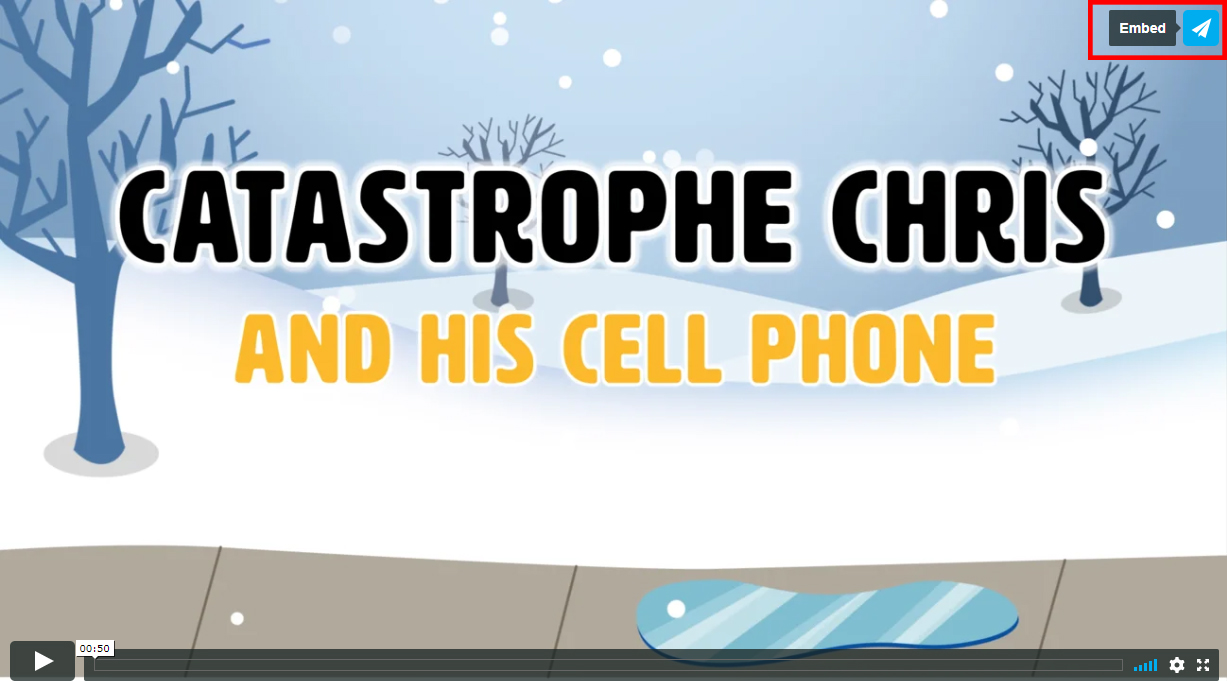
- Locate the video you want to add to your intranet site . Click on the paper airplane icon in the upper right corner of the video (see above).
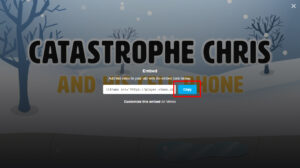
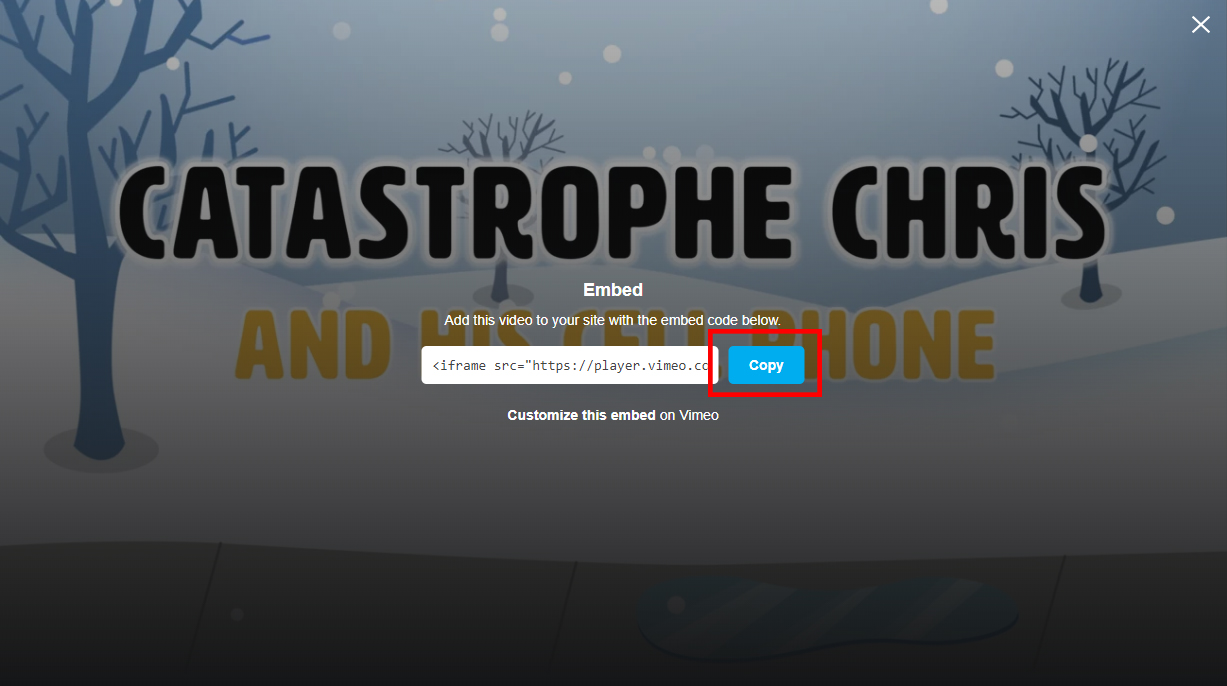
- Click the blue “Copy” box to capture the embed code (see above).
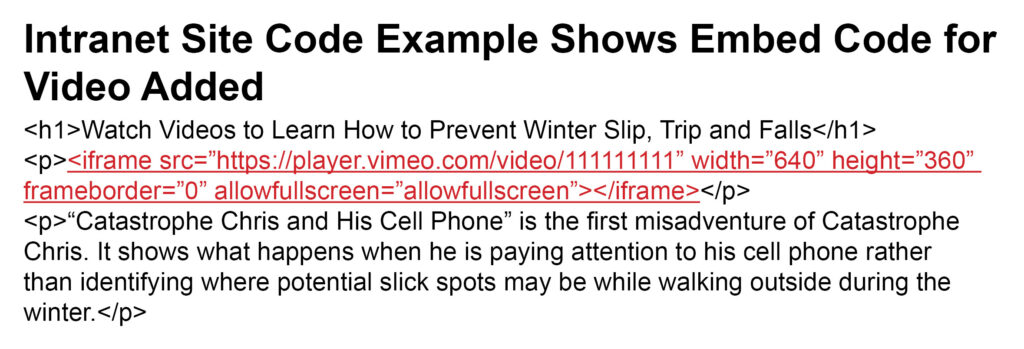
- Paste the embed code into the code of the intranet page where you want the video to appear (see above). The embed code looks something like this: <iframe src=”https://player.vimeo.com/video/111111111” width=”640” height=”360” frameborder=”0” allowfullscreen></iframe>
Topics